
1.Presentation
The TabEditor software is intended for simplified management of dynamic tabs, this management is based on user groups. Each category of users has tabs adapted to their needs. A dynamic tab can be created from an existing standard tab or can be completely new.
Recommendation: The creation of a dynamic tab requires a good knowledge of the Radio-Assist database and must be the subject of a preliminary study with the administrator.
The parent tabs of an existing fixed tab must be virtual. This for reasons relating to the broadcasted applications.
2.Program Installation
2.1.Requisite Software Package
Microsoft Visual C++ 2008 SP1 Redistributable Package (x86) is required to be able to execute the Radio-Assist 8.0 applications.
Microsoft Visual C++ 2008 SP1 Redistributable Package (x86) installs the requisite runtime components found in the Visual C++ libraries in order to execute the applications developed via Visual C++ SP1 on a computer which is not equipped with Visual C++ 2008 SP1.
2.2.Using the installer
To install the TabEditor software, run the installation program "TabEditor.msi". When the window below appears, click on the "Next" button to proceed with the installation.
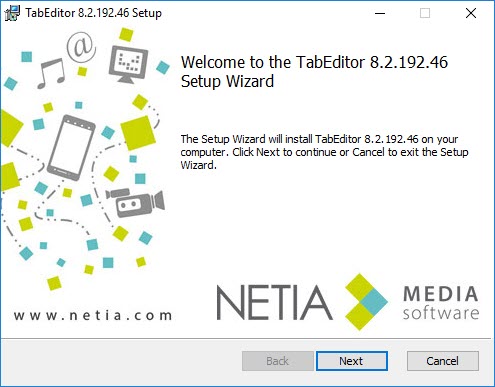
Click on NEXT to go on with the installation process.
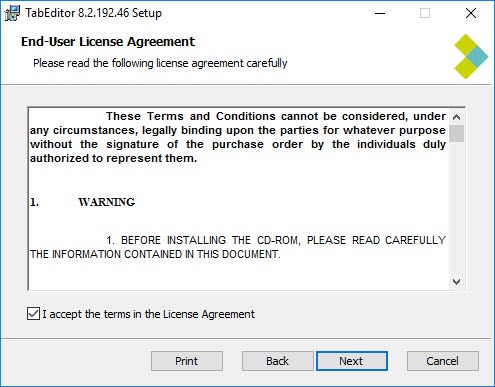
Accept the license agreement by ticking the box.
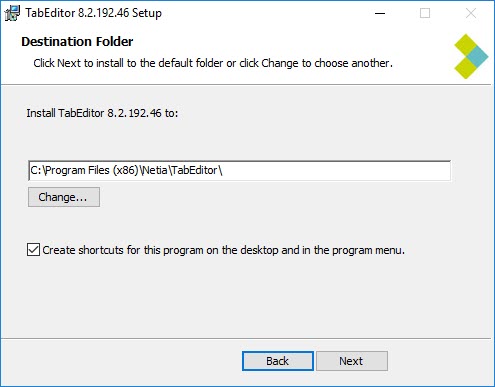
C\Program Files\Netia\TabEditor. Click on NEXT to go on with the installation process.
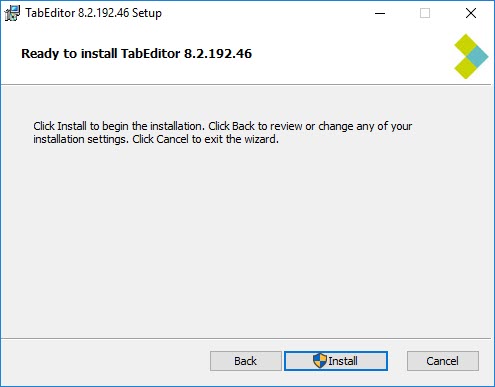
The Setup Wizard program is now ready to install the TabEditor software. Click on INSTALL to go on with the installation process.
Click on FINISH to end the installation.
Double-click on the TabEditor icon which is on the desk to launch the program and see its interface.
Log in as with your user name appropriate and password to access the program.
2.3.Setup Description - Accessing the database
When you execute TabEditor for the first time, the following dialog box appears "Database Error" because no configuration has been done to access to the database. When closing this dialog box by clicking on OK, the "setup" window will be visible and will allow you to configure the access to the databases so as to be able to use TabEditor.
Information : This window will only appear once while executing the program for the first time.
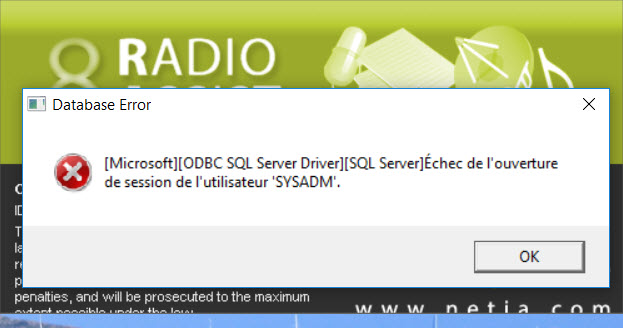
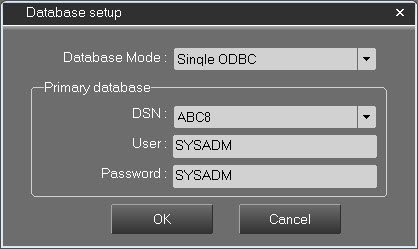
The following window called "Database Setup" allows you to set the ODBC accesses to your databases. First, you need to create the ODBC database sources to make them appear in the DSN field.
The display will be different depending on the connection type used :
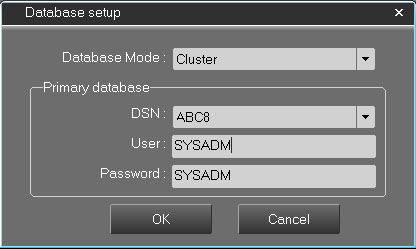
1- When using an ODBC connection to the database or a "Cluster" connection, select in the DSN menu the primary database. Then we put the user name and password.
2- When using a "Double ODBC" connection to the database or a "Replication", select in the DSN menu the primary database and the second database. For both of them then put the user name and password.
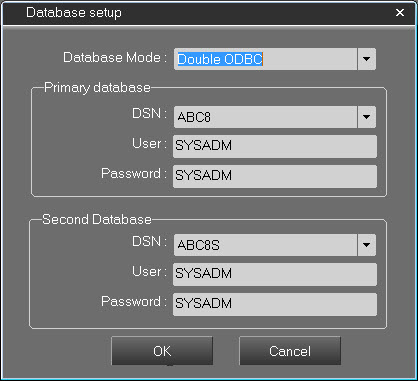
 DSN: Name of the ODBC source to access to the database
 User : User name to connect yourself to the database
 Password : User password
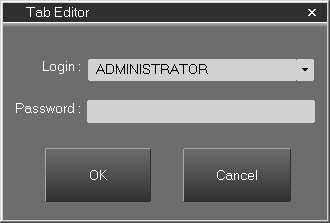
Once you're through with your settings, click on OK to confirm the operation. The Password window will appear. Choose a user and indicate its password: TabEditor's main window will show up. The connection to the database has been established and the tabs are visible in the upper part of TabEditor.
3.User Interface
To use TabEditor, you have to log in as "Administrator" or alternatively, as a user with administrator's rights.
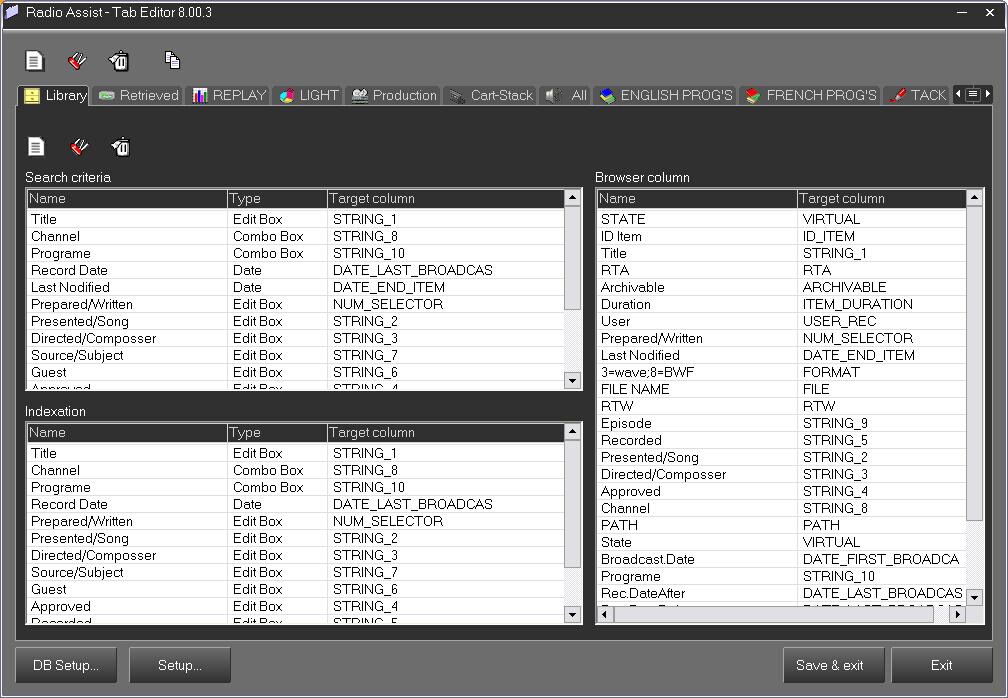
 Button to create a dynamic tab
 Button to modify a dynamic tab
 Button to delete a dynamic tab
 Button to copy a dynamic tab
 Button to change the settings regarding ODBC / DBShare accesses to the databases
 Button to modify the settings regarding the path access to the directory containing all the icons for each tab
 Button to save and exit the program
 Button to exit the program without saving
4.Dynamic Tab Creation
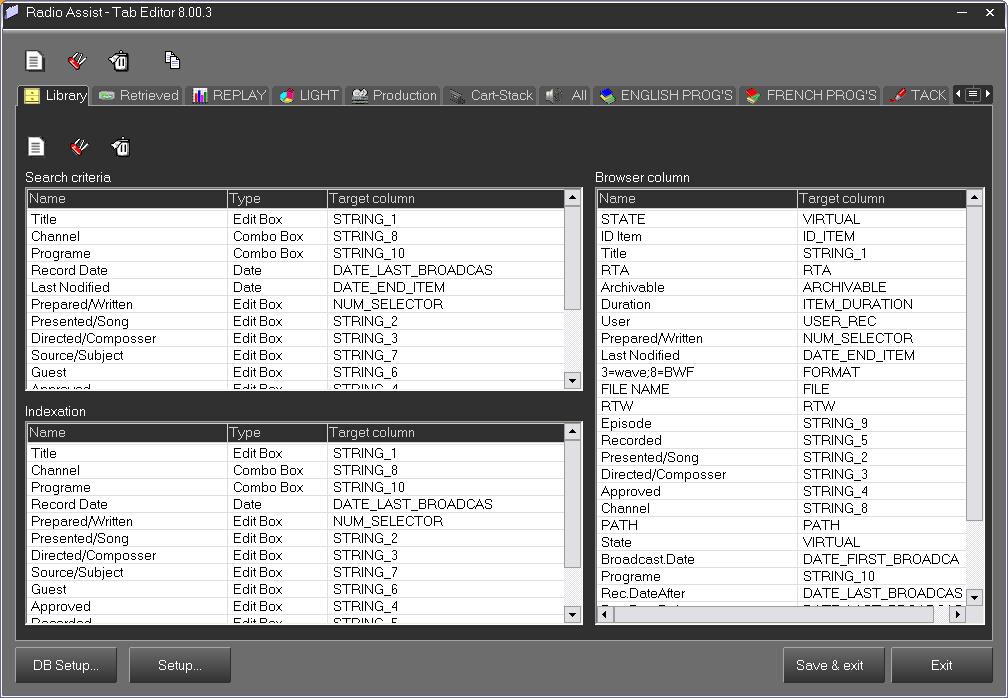
From the main screen, click on  The following window will open.
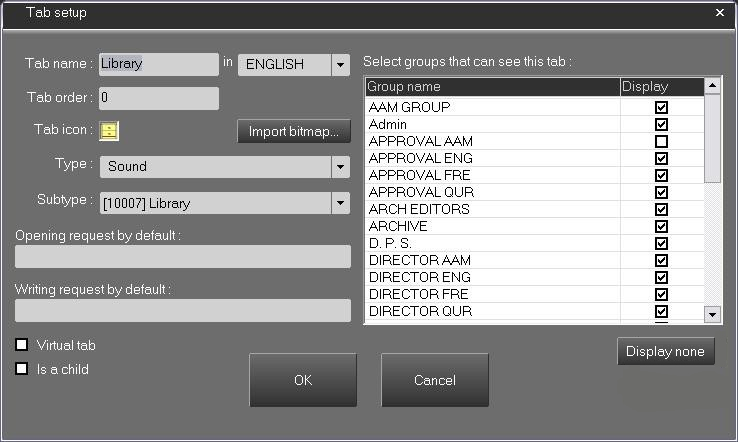
Enter the following information:
Tab name : Name for the dynamic tab, this name will be validated in the selected language

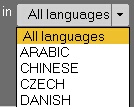
In : Selection of the language used for the name of the dynamic tab
Tab Order : Allows you to specify the tab position (0 by default)

Tab icon : Icon associated to the dynamic tab (*.ICO or *.BMP)

Import bitmap : Allows you to choose the icon associated to the dynamic tab. Opens a dialog box called " Open File "

Item type : Selection of the type of elements which will be managed by the tab (associated type of content)
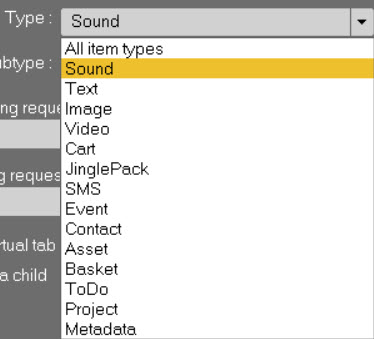
Sound, Text, Image, Video : Type of physical items that could be broadcasted.
Cart, Jingle Pack : Type of elements used to group items for broadcasting.
SMS, Event, Contact : Type of specifc elements.
Asset, Basket, To Do, Project : Type of elements used in Media Assist.
Metadata : Type of elements used in order to create metadata items to add more metadata to a screen in Radio Assist.
Subtype : Selection of a set of existing subtype elements
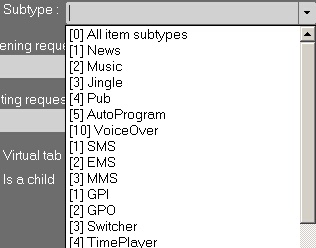
Opening request by default : Request to execute each time you open a dynamic tab of the SELECT type.
Completion of this field is not compulsory.
If necessary, one can specify a SQL clause in this field: this latter will appear in the WHERE clause of a request of the SELECT type.
Example: STRING_3 LIKE ‘Sport’
This clause will therefore be automatically used by the Radio-Assist browser when the dynamic tab is selected. In this example, the browser will perform a request such as the following one " SELECT … FROM T_ITEM WHERE … AND STRING_3 LIKE ‘Sport’ " to display the elements belonging to a tab.

Writing request by default : Request to execute when inserting or modifying an element in a dynamic tab (INSERT or UPDATE type)
Completion of this field is not compulsory.
If necessary, one can also specify a SQL clause in this field: this latter will appear in the SET clause of an UPDATE type of request.
Example: STRING_3 = ‘Sport’
When inserting (index card) an element in the tab, the clause will be automatically used. In this example, the browser will perform an " UPDATE T_ITEM SET …, STRING_3 = ‘Sport’ WHERE ID_ITEM = … " type of request.

Virtual tab : If this option is ticked ; Virtual tab in read-only mode, not ticked ; dynamic tab - addition and modification authorized (the tab will therefore appear in the index card)

Is a Child : If this option is ticked ; it's a sub-type of a dynamic or virtual tab which already exists.

Select groups that can see this tab: Selection of groups of users who will be able to see one given tab in the Radio-Assist Browser.
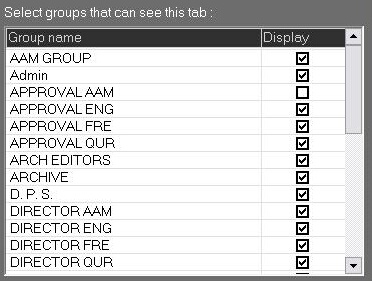

 or This button is used to select or deselect all groups at the same time.
It changes value by clicking on it..
5.Modification of a Dynamic Tab
To modify a dynamic tab, select the tab you wish to modify and then click on the following button to modify this tab:
Clic on  Button to modify a dynamic tab.
Make the changes, then click on  .
.
6.Deletion of a Dynamic Tab
To delete a dynamic tab, select the tab you wish to delete and click on the following button to delete this tab:
 Button to delete a dynamic tab.
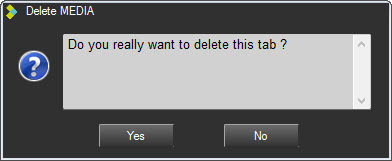
Click YES to validate the deletion.
IMPORTANT:
EACH TIME THE DATA MODEL IS MODIFIED, IT IS IMPERATIVE TO :
- RESTART THE RADIOASSISTANT
- MAKE AN "iisreset" FOR RADIOASSISTWEB
7.Component Definition Criteria
To create components in a dynamic tab, select the tab and click on the button  inside the tab.
Then, fill in the fields below.
inside the tab.
Then, fill in the fields below.
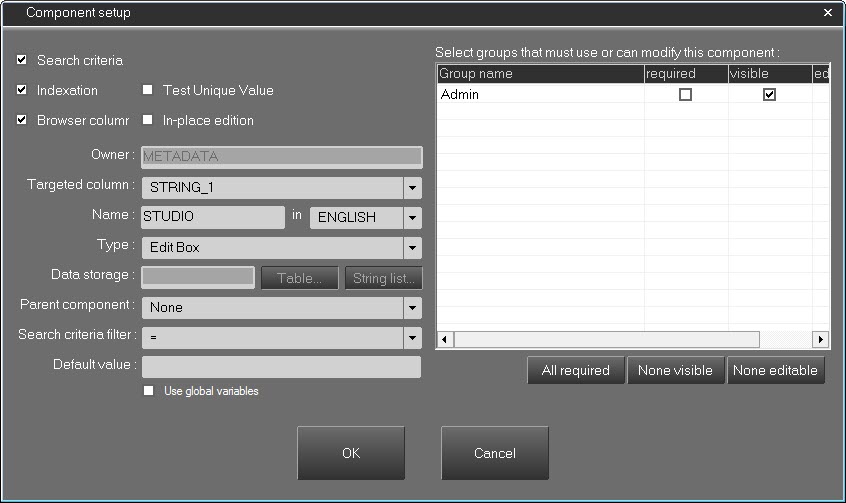
Search criteria : The component appears as a search criteria in the Browser

Indexation : The component appears as an index card element in the database

Test Unique Value : activates the unicity test on the value entered in the field

Browser column : The component appears as a clone which will be visible in the Browser

In-place edition : Allows the modification of the field directly into the Browser.

Owner : Name of the dynamic tab the component is linked with

Targeted column : Selection of the target column in the T_ITEM table
Advanced Target Column :
‘$GLOBAL’: Search criterion used to search all the string components (editbox, multiline) contained in the index form (or in the browser grid).
‘$FULLTEXT’: Advanced FullText search in text data indexed in the T_FILECONTENT table. This data may be the result of transcription or other specific configurations (dispatches, etc.).
The FullText search allows you to perform simple, Boolean, near and partial (*) searches. See the RadioAssist user documentation for details of how to use the controller.
All Tab : In the static ALL tab, the ‘Global’ field searches the STRING_1 to STRING_4 (or STRING_5) database fields of all the tabs. Boolean searches are possible.

Name : Name of the component in the chosen language
In : Language selection
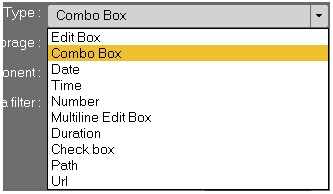
Type : Component types
Edit Box : editing field, simple line, alphanumerical characters
Combo box : Multiple-choice list and populating field if this component is modifiable.
Date : calendar field type
Time : hour field type
Number : Field dedicated to numeric values only
Multi-line Edit Box : editing field spread over various lines
Duration : Length field with a hh/mn/ss format
Check Box : box to tick
Path : complete path to a file
Url : complete file to a Url
Status : box to tick type of field
MultiComboBox : Multiple choices list with the possibilty to choose between several values from the list
Flag : boolean field. When selected, an "Import icon" button is shown in order to select a specific icon.

The icon must be a .png file and no more than 256x256.

Table : Button to select the table where the component information will be stored. This option is only available for combo-box component types.
This option allows people to create views (aliases) on a table belonging to the ABC8 database.
Dialog window : Selection of the data storage table.
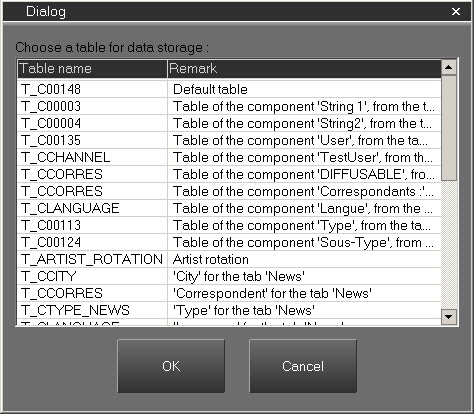

Data storage : Name of the table (View) in which the data are stored.

Parent component : Link between combo-boxes (Father-son relationship)
If a Combo Box has a parent component, only the strings that are dependents on the selected string in the parent combo-box will be visible in the list. If no string has been selected in the parent combo-box, all the strings will be visible.
WARNING : if two combo-boxes linked together are set as "indexing" element, it is strongly recommended to associate the "Must use" right to those boxes.

Search criteria filter : Search filter
For the string of characters (= strictly equals to, LIKE similar to)
For figures and dates (<=, >=, =)
Default value : By default value to assign in the field depending on its type
Use global variables : Use of global variables when the bow to tick is selected.
Select groups that see this tab :
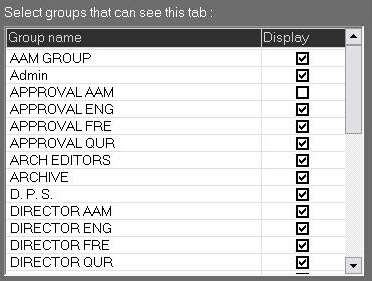
Select groups that must use or can modify this component : Selection of groups of users who can use or modify the components
Required : Required input fields for indexing in the database.
Visible : Lets you see the component for a given group.
Editable : Modify the component for a given group.


All/Non required :Button to assign or remove all rights for all groups.


All/None visible : Button to assign or remove all visibility rights for the field for all groups.


All/None editable : Button to assign or remove all rights for all groups to add or edit an index field for combo boxes.

OK : Validation button

Cancel : Cancel button
To edit components in a selected dynamic tab, click on 
 or double-click on it.
To delete components in a selected dynamic tab, click .
or double-click on it.
To delete components in a selected dynamic tab, click .
Note :
The order for the different components can be changed by a simple " Drag&Drop " operation: this order will be respected when displaying the tabs in the RadioAssist browser.
8.Creating a string of characters by default in a combobox
8.1.Creating a string of characters
To create a string of characters by default in a combo-box, click on the following button.
 Button to add a string of characters by default in a combo-box and create links of parenthood between them.
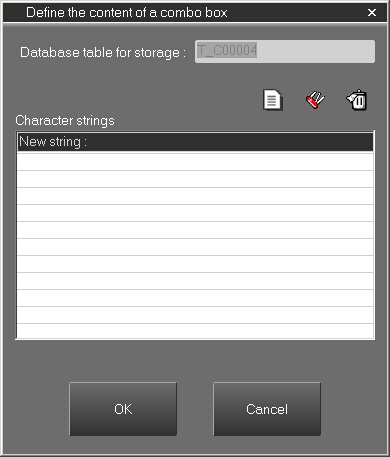
Click on the following button to add a string of characters by default in a combo-box and type in your new string of characters by default.
 | Button to create a new string of characters |
 | Button to modify a selected string of characters |
 | Button to delete a selected string of characters |
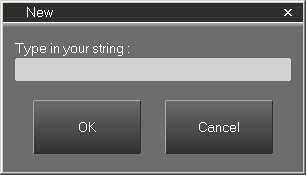
It is possible to link combo-boxes between them (Father-son relationship) with the following criteria :
When you click on the " String List " button of a combo-box with a parent, the " Define the content of a combo box " window appears with a " Dependency " button. This same button allows you to select the parent string of characters the combo-box belongs to.
To modify a component in a dynamic tab, select the component and click on the following button  .
.
To delete a component in a dynamic tab, select the component and click on the following button  .
.
8.2.Creating an advanced character string
8.2.1.Character string dedicated to a user group: $GROUP
In order to dedicate a character string to a user group, use the following tag when creating the string:
<$GROUP=[GroupName]>[CharacterString]
Strings with the $GROUP tag will only be visible to users in the group.
8.2.2.Translating character strings: $LANGUAGE
In order to translate a character string into different languages, use the following tag when creating the string:
<$LANGUAGE=[LanguageName]>[CharacterString]
Character strings with the $LANGUAGE tag will only be visible to users with the language preference corresponding to the language defined.
9.Tables Description to Manage Dynamic Tabs
9.1.T_COMPONENT TABLE Description
This table regroups all the information regarding the definition of a component on a dynamic tab.
A component can either be :
- A column in the browser
- An indexation
- A search criteria
9.1.1.FIELDS DECLARATION
T_COMPONENT | |||
Name of the column | Type | Length | Information / Comments |
ID_COMPONENT | int | 4 | Unique Id, non-null |
ID_TAB | int | 4 | Tab Unique Id |
ITEM_COLUMN | Varchar | 20 | Targeted column in T_ITEM |
ID_SOFTLANG | int | 4 | Reference in the T_SOFT_LANG table |
TYPE_COMPONENT | int | 4 | Component type |
CRIT_FILTER | varchar | 10 | Filter applied to search criteria |
COMBO_TABLE | varchar | 32 | Name of the associated table if type = 2 (combobox) |
ID_PARENT | int | 4 | Id of the parent component |
IS_INDEX | int | 4 | >0 if yes |
IS_CRIT | int | 4 | >0 if yes |
IS_BROWSE | int | 4 | >0 if yes |
9.1.2.INDEX
Index | Type | Columns |
I_COMPONENT_PK | ASC | ID_COMPONENT |
I_SOFTLANG | ASC | ID_SOFTLANG |
I_TAB | ASC | ID_TAB |
9.1.3.DETAILS ON EACH FIELD
ID_ COMPONENT
Primary unique key.
ID_TAB
Index of the tab in T_TAB possessing this component.
ITEM_COLUMN
Name of the column targeted in T_ITEM
ID_SOFTLANG
Reference in T_SOFT_LANG, indicating the title of the component.
Warning : The T_SOFT_LANG ID_SOFTWARE field for the dynamic tab components is fixed to 501.
TYPE_COMPONENT
Type of component :
1 = Edit box
2 = Combo box
3 = Date
4 = Time
5 = Number
6 = Multiline Edit Box*
* Multi-line fields are rich edit control objects that resemble an edit box but can handle text that is formatted. Therefore, users should beware of what type and size of fonts they are using in those fields, as the number of authorized characters** will vary depending on the formatting they have chosen.
** In order to know what is the maximum authorized length that each field can contain, users must refer to the ABC8 database documentation.
CRIT_FILTER
Filter to apply for some search criteria.
Warning : This field is valid only if
IS_CRIT > 0 and TYPE_COMPONENT = 1 or 2 or 4 or 5
TYPE_COMPONENT | Possible Values |
1 | ‘ = ’ or ‘ LIKE ’ (without the apostrophes !) |
2 | ‘ = ’ or ‘ LIKE ’ (without the apostrophes !) |
4 | ‘ <= ’ or ‘ >= ’ or ‘ = ’ (without the apostrophes !) |
5 | ‘ <= ’ or ‘ >= ’ or ‘ = ’ (without the apostrophes !) |
COMBO_TABLE
Name of the table associated to this component, if this one has a type 2 = Combo box
ID_PARENT
Index in T_COMPONENT of the parent component.
–1 if no parent.
IS_INDEX
Indicates if this component is an indexing element.
The components are ordered, based on this field.
IS_CRIT
Indicates if this component is a search criteria.
The components are ordered, based on this field.
IS_BROWSE
Indicates if this component is a browser column.
The components are ordered, based on this field.
REMARKS :
Some rights are associated, to each group of users, for any component.
For now, two rights have been defined :
" Can we update this component ? "
" When copying this element, is a value required for this component ? "
In T_SOFT_LANG this translates to :
ID_GROUP_USER | NAME_GROUP | ID_SOFTWARE | PARAM_TYPE | PARAM_CRIT | PARAM_VALUE |
Id_group | Name_group | 501 | Id_component in string of characters | UPDATABLE | " Yes " or " No " |
Id_group | Name_group | 501 | Id_component in string of characters | REQUIRED | " Yes " or " No " |
9.2.T_Cxxx Description
This table regroups all the information regarding the management of strings that are added to the combo-box types of components.
The exact name of the table is stored in the T_COMPONENT table.
9.2.1.FIELDS DECLARATION
T_Cxxx | |||
Name of the column | Type | Length | Information / Comments |
ID_COMBO | int | 4 | Unique id, non-null |
COMBO_STRING | varchar | 25 | String, name of the combo-box |
ID_PARENT_COMBO | int | 4 | Id for the parent string |
9.2.2.DETAILS ON EACH FIELD
ID_PARENT_COMBO
Index for the parent string of characters.
Warning : This string is not in the same table, but in the T_Cxxx table associated to the component's parent, which is itself linked with that table.
9.3.T_Tab Description
This tab contains all the information regarding the management and the definition of a dynamic tab.
9.3.1.FIELDS DECLARATION
T_TAB | |||
Name of the column | Type | Length | Information / Comments |
ID_TAB | int | 4 | Unique ID |
ID_SOFTLANG | int | 4 | T_SOFT_LANG table reference |
VIRTUAL | int | 4 | No = 0, Yes = 1 |
TYPEITEM | int | 4 | Type of associated items |
TYPE1ITEM | int | 4 | Sub-type of associated items |
DEFAULT_REQUEST | varchar | 128 | Request by default when opening a tab |
WRITE_REQUEST | varchar | 128 | Request by default when closing a tab |
ICON | text | 16 | Tab icon |
ROTATION | int | 4 | Rotation in Air-playlist |
TAB_ORDER | int | 4 | Tab order number |
9.3.2.INDEX
Index | Type | Columns |
I_SOFTLANG | ASC | ID_SOFTLANG |
I_TAB_PK | ASC | ID_TAB |
9.3.3.DETAILS ON EACH FIELD
ID_TAB
Primary Unique Key.
ID_SOFTLANG
Reference in T_SOFT_LANG, indicating the name of the tab.
Warning : the T_SOFT_LANG ID_SOFTWARE field for the dynamic tabs is fixed to 500.
VIRTUAL
For virtual tabs management.
TYPEITEM
Subtypes of content managed by the tab :
0 = All subtypes
1 = Sound Item
2 = Text Item
3 = Image Item
4 = Video Item
TYPE1ITEM
Subtypes of content managed by the application:
Value | Sound Item | Text Item | Image | Video |
0 | All subtypes | All subtypes | All subtypes | All subtypes |
1 | News | |||
2 | Music | |||
3 | Jingle | |||
4 | Ad | |||
5 | AutoProgram | |||
10000 | New sub-type | |||
10001 | … |
DEFAULT_REQUEST
Additional parameters for the SELECT type of requests whenever a tab is opened.
WRITE_REQUEST
Additional parameters for the UPDATE type of requests whenever a tab is closed.
ICON
Tab icon presented under the shape of a string of characters. Each octet for the original image is transcribed on two characters using the hexadecimal representation (ex: An octet whose value is 255 will translate to " FF ")
ROTATION :
Rotation in Air-playlist.
TAB_ORDER :
Gives the order in which the tabs are displayed, value by default : 0
REMARKS :
A set of rights is associated to each group of users, and for each tab.
For the moment, only one right has been defined :
" Is the group authorized to see this tab ? " In T_SOFT_LANG this translates to:
ID_GROUP_USER | NAME_GROUP | ID_SOFTWARE | PARAM_TYPE | PARAM_CRIT | PARAM_VALUE |
Id_group | Name_group | 500 | Id_tab given in string form | DISPLAY | " Yes " or " No " |