
1.Autofill
1.1.Presentation
1.1.1.Introducing Autofill
The Autofill program is a clever way to process audio files together. It is the perfect tool for importing audio files of different formats and/or sources into the RadioAssist database.
Autofill has an automatic mode to run operations continually without human control. It processes the files to convert them as you require, adjusting their sound levels if need be and automatically entering their metadata to the RadioAssist database.
Input formats allowed: PCM (Wave or AIFF), G711, MPEG1/2 Layers 1/2/3 (Raw, Wave or BWF), AAC (mp4, adts) and other specific formats, including retrieval of metadata, if any.
Output formats: PCM (Wave, AIFF or BWF), MPEG1/2 (Raw, Wave or BWF).
Normalization system to ensure overall file consistency.
Database filled automatically with any existing metadata (i.e. Broadcast Wave Format, BWF).
Dual database handling (data and files).
Automatic standby when items are saved or updated in the database.
Audio file cleaning to prevent occurrence of problems due to corrupt files.
Multiple profiles management (backup and restoration of configuration profiles).
Several AutoFill programs can run on the same computer, each with its own options.
Automatic start depending on presets options.
Option to send error log to the NETIA Logger Service
Special plug-in handled.
Media Management handled (on RTA/RTB/A'able/B'able/RTW flags)(Not available from version 8.2 or higher).
Double target path handled when database insertion is deactivated.
XML import.
Possibility to import non-audio items (picture, video, text) with or without an xml.
Though anyone can use Autofill, its installation requires technical experience, especially of digital audio systems, and should only be undertaken by systems administrators.
1.1.2.Conditions
The number of Autofill programs you can use on a single computer depends on the number and type of Autofill licences you own.
Due to copyright licensing, some features are optional, such as MPEG Layer III software encoding. Such licences are obtainable from Netia.
Autofill playout function requires an audio resource. This can be a Digiram PCX card or a generic sound card.
1.2.Installation
Before installing the Autofill package, the Digigram audio drivers must be installed if you intend to use a Digigram PCX card as a playout audio resource. Ensure that the drivers are compatible with your OS version.
Before starting installation, ensure you are logged in with administrator rights, at least for the local computer.
If Radio Assist is already installed, install the entire Autofill program in the same directory.
To install AutoFill, doucle click on "AutoFill.msi"
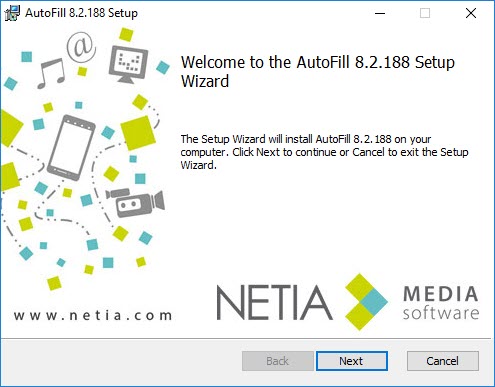
Click on 
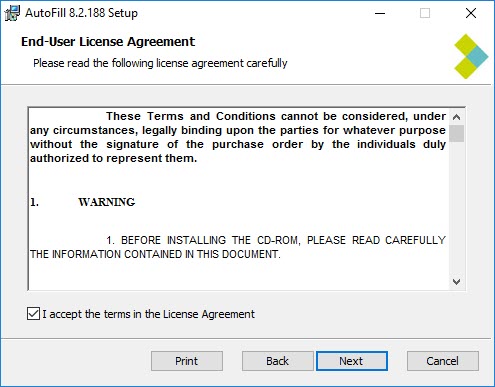
Check the box to accept terms in license agreement.
Click on 
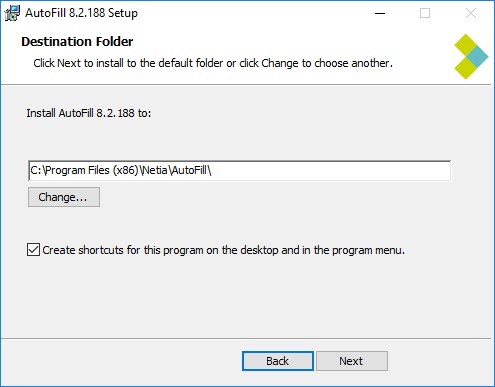
Select installation folder.
Click on 
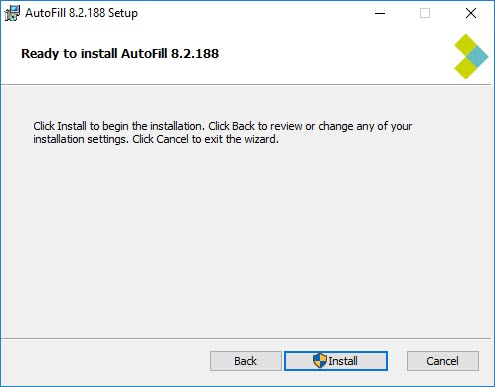
Click on 
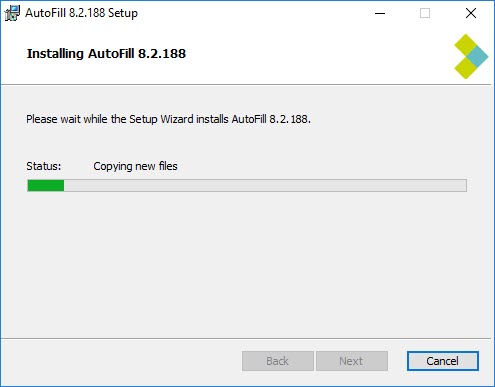
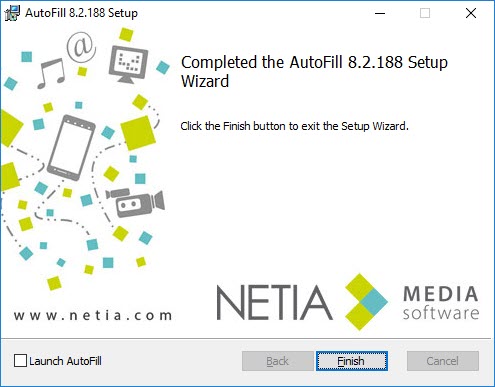
AutoFill is installed.
1.3.Start
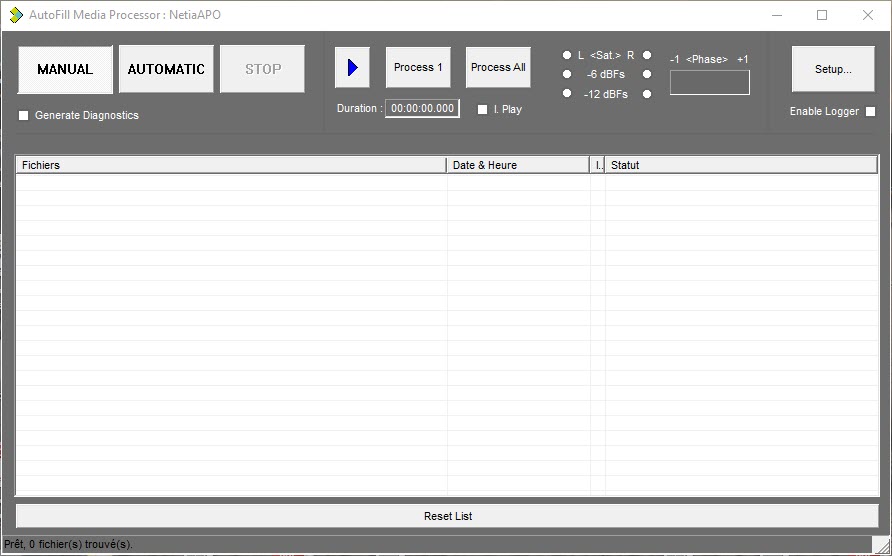
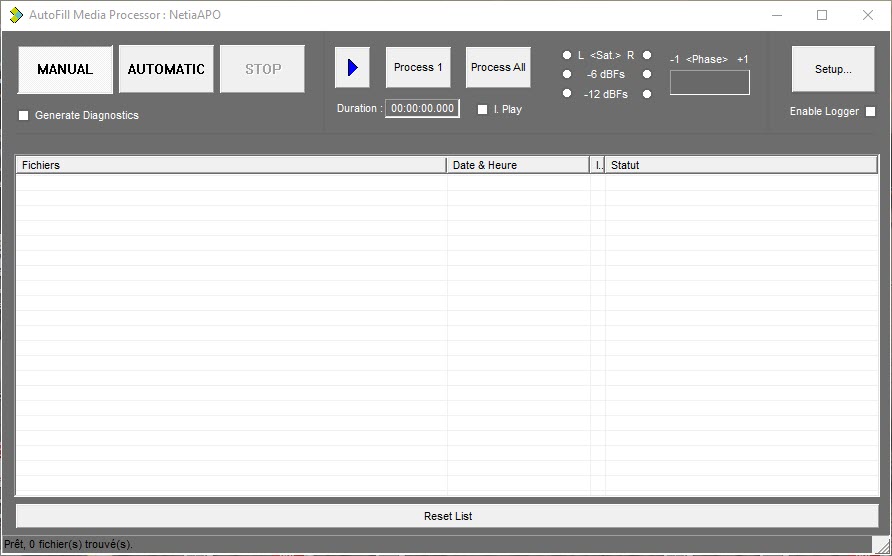
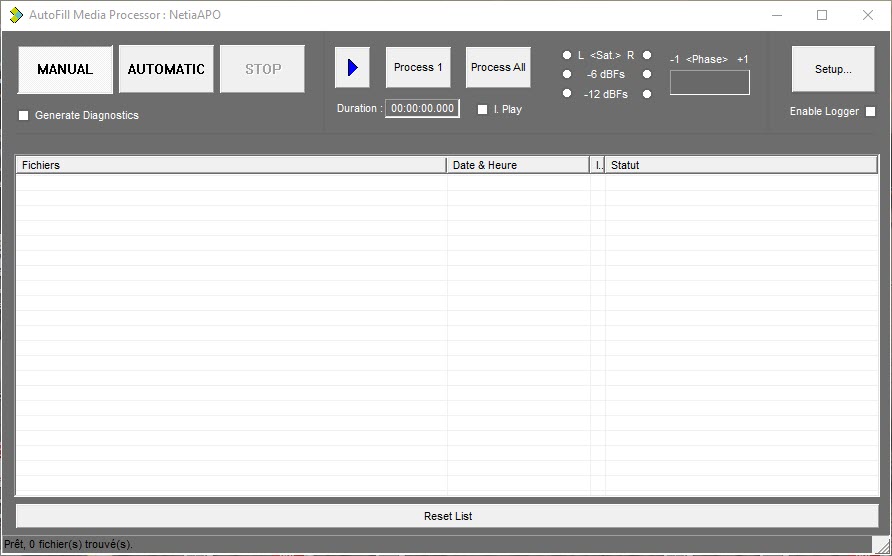
There are 2 modes to start AutoFill : Automatic and Manual
Automatic : Once started, AutoFill will process items continuously, until an user click on Stop button.
Manual : Processing will be launched manually via Process 1 or Process All buttons.
If you are using AutoFill for the first time, and no settings profile is defined, you must create one by accessing the setup screen.
You can create Autofill shortcuts to load a configuration profile automatically and operate in standalone mode.
optionset_name è load the option set and run in unattended, Automatic mode
optionset_name /W è load the option set and wait user action
optionset_name /M è load the option set and run in Manual mode (Process All)
optionset_name /ME è same as above but exits once all files processed (successfully or not)
Edit the shortcut properties and enter the option name in the command line.
You can also put the shortcut in the start folder and install your workstation with an Auto-Logon.
1.4.Settings
Open AutoFill to access the setting window.
Click on  to start the settings.
Note: Autofill shall run with Administrator rights, otherwise the following warning appears :
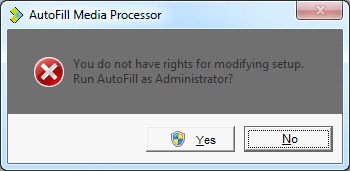
(You may click "No" to access setup in 'read-only' mode.)
The reason is with default security policies, if Autofill is not running with Administrator rights, it will be unable to modify HKEY_LOCAL_MACHINE registry hive, where settings are stored.
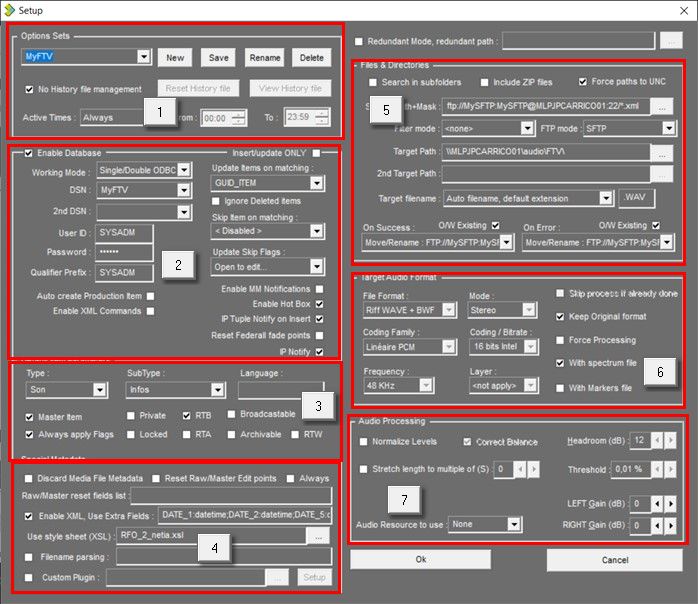
This screen is divided in 7 sections :
Options Sets : The “Options Sets” section is used to select, create, save, rename and delete settings profiles named in the dropdown list.
Enable Database : Database settings.
Default Item Parameters : Default values when inserting a new item into the Database.
Special Metadata : Managing associated informations.
Files and directories : Source and target directories.
Target Audio Format : Format and audio encoding for processed files
Audio Processing : Special features for audio items only .
Important :
All the configuration parameters are stored in the local record registry in :
“HKEY_LOCAL_MACHINE\Software\Netia\Na-Conv” if using a 32bits OS.
“HKEY_LOCAL_MACHINE\Software\Wow6432Node\Netia\Na-Conv” if using a 64bits OS.
The Setup window only shows the most frequently used parameters. There are more parameters located in the Autofill registry hive. Refer to Annex 1 at the end of this document for details.
About History files :
When running in Automatic Mode, Autofill keeps track of successfully processed files (full path and date), thus avoiding processing again a file, unless it has been updated.
History files are named with the "Option Set" name, with '.hst' extension filename, and - except stated otherwise - are stored in the common data folder : %ProgramData%\Netia\AutoFill\History files
1.4.1.Options Sets
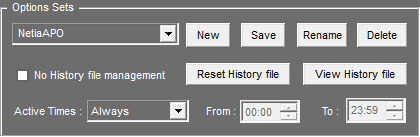
The “Options Sets” section is used to select, create, save, rename and delete settings profiles listed in the dropdown list.
To create a new profile, type the name of the new profile and click on  .
.
There's a minimum set of mandatory fields to be filled. An error message will popup when one of these is empty.
No History file management : This parameter is relevant in Automatic Mode only. It is not available when "Redundant Mode" is enabled.
When enabled, No history file is managed; Autofill removes items from the displayed list when successfully processed.
It is advised to enable post process options On Success (delete or move source item) to avoid items to be reprocessed indefinitely.
Reset History File : clears the history file for the current option set.
View History File : opens history file in notepad for the current option set. Active Times : Activate local time ranges for all week days or day by day.
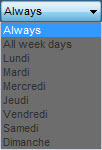
Outside local time ranges, AutoFill's activity is suspended.
By selecting an option different from Always, the 2 fields "From" and "To" will be activated.
This feature is relevant in Automatic mode only.
1.4.2.Redundant Mode, Redundant path

Autofill has the ability to run in a redundant mode : Several Autofill instances may run independently, regardless where they're running (same computer or dispatched across several machines).
This feature allows to :
Provide a fault tolerance behavior,
Increase processing speed /capacity,
Manage process priorities.
The key point of Redundant mode is the choice of a common shared path, where a common history file is shared among Autofill instances running the same Option Set. The path must point to a target folder with write access/lock rights granted.
All Autofill's instances of a redundant group must use the same name for the option set.
Click on  to choose the shared folder.
1.4.3.Enable Database
By ticking the option "Enable Database", the settings to select the database is enable.
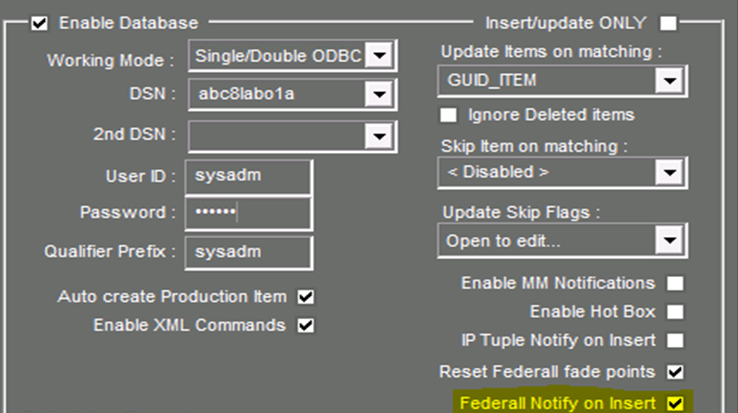
Insert/update ONLY : Autofill will reference existing items (add or update) in the database. No media will be copied/processed. This feature is useful to populate a database with existing items.
Working Mode : Select the database working mode, according to your DB setup.
Federall Notify on Insert : Sending a message on the network to FederallOpenAir (Configuration in registry)
For Single/Double ODBC or Cluster or Replication mode :
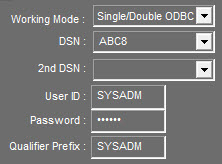
Select the working mode, the primary DSN and eventually the 2nd DSN.
Then type the user ID and the password to access the database
Then the table qualifier prefix (default is SYSADM).
Update Items on matching :
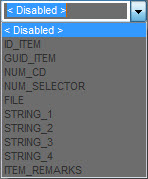
Allow Autofill to update existing DB item instead of inserting new ones.
You have to select which T_ITEM columns will be used to search a match in the database.
You may choose one of the predefined columns in the list, or type up to 10 columns names, comma separated.
Keys values are extracted from media source files metadata and/or XML tags.
Each criterion (column & key value pair) is evaluated in the same order as entered.
If a match is found in the database, the 1st match will be updated (along with its associated media if required) instead or creating a new db item.
If the item being updated is a Raw/Master item : The 1st associated Production found will be updated too.
If the item being updated is a Production item : The Raw/Master item will be updated too.
Notes :
When working with BWF media files, BWF "Originator Reference" field will be used as a default value for ID_ITEM, GUID_ITEM, NUM_CD or NUM_SELECTOR criteria. This default value will be superseded with XML matching tag name.
Except for predefined columns, keys values are assumed to be text fields.
Strings criteria are NOT case sensitive, EXCEPT NUM_CD and NUM_SELECTOR.
'FILE' criteria apply to filename without its extension (nor its drive/path/directory).
Ignore deleted items : If checked, discard deleted/archived+deleted items when looking for a match. Applies to 'Update Items on matching' feature.
Skip Item on matching :
This feature works on a similar basis than 'Update Items on matching' feature. But the purpose here is to skip insertion/update of an item, if a match is found.
Update Skip Flags : This feature is enabled if at least 1 criteria is defined in 'Update Items on matching' field, and is only relevant if an update takes place.
If one of the ticked flag matches, item to be updated will be skipped.
If a more complex skip condition is needed, you can check 'Custom clause' and define an SQL query in the registry. Refer to Annex 1.
Auto create Production Item : When a new item is added to the database, an associated Production item is created if specific metadata is found (Edit points). When an item is updated, the 1st associated Production item found is updated too.
Note: When an XML item has its VIRTUAL field set as Production Item (5), a Production item is always created/updated.
Enable XML commands : If checked Autofill will use specific commands in the XML (DEL,ADD,UPD) to alter normal operation. Used for client specific requirements.
Enable MM Notifications : Enable sending Media Management notifications when adding/updating items. Relevant for Autofill 8.01 versions only.
Enable Hot Box : Enable sending 'Hot Box' messages to Radio Assist Browser. If activated it is advised to tick also RTB/Broadcastable checkboxes in 'Default Item Parameters' section.
This feature requires specific settings to be done in the registry. Refer to Annex 1 for details.
IP Tuple Notify on Insert : Upon successful DB insert, a DB item Tuple is sent to an IP Address.
This feature requires specific settings to be done in the registry. Refer to Annex 1 for details.
Reset Federall fade points :
This box is checked by default.
When the feature is enabled, each time Autofill imports an item, it will remove fade points from all copies of that item that are in Federall conduits. They are replaced by two fade points at the beginning of the sound and two others at the end, all at level 0.
When the feature is disabled, Autofill does not interact with Fade points.
Note that the mix points (inlink / outlink) are never affected.
IP Notify : Sending an IP command when inserting or updating an element. This command is used, among other things, in the workflow of automatic import of elements into a pipe.
Description order
The command sent on IP is a text string in JSON format
{
"MSG": {
"VERSION": 1,
"COMMAND": "IMPORT_FEDERALL",
"PROFIL": "IMPORT_FTV_WEBRADIO",
"ACTION": "insert",
"GUID": "a65607b5-ac8f-418a-9c66-5dfb2da3dcbc",
"ID_MSG": "16f90276-9f59-44d3-aa8b-8915052065cd"
}
}
VERSION | Fixed verification parameter |
COMMAND | Variable parameter, name of the import function (the one in the registry) |
PROFIL | Variable parameter, name of the import profile (the one in the registry) |
ACTION | Variable parameter, action type: insert/update |
GUID | GUID_ITEM of the element inserted in database |
ID_MSG | Unique message identifier |
The keywords " Function " and " Profile " must be identical to those in the FederallOpenAir configuration.
Network socket configuration :
\HKEY_LOCAL_MACHINE\SOFTWARE\[WOW6432Node]\NETIA\Na-Conv\Options Sets\Profil

DB : Cmd2IP | Default (No), enable command sending over IP |
DB : Cmd2IP Params (Dest Addr,Local Addr,Port,TTL | Default (234.11.11.11, , 7070, 254), socket configuration |
DB : Cmd2IP Profil | Default (EMPTY), import profile name |
The command sent on IP is a text string in JSON format
{
"MSG": {
"VERSION": 1,
"COMMAND": "IMPORT_FEDERALL",
"PROFIL": "IMPORT_FTV_WEBRADIO",
"GUID": "a65607b5-ac8f-418a-9c66-5dfb2da3dcbc"
}
}
VERSION | Fixed verification parameter |
COMMAND | Fixed parameter, of order intended for the Federall import |
PROFIL | Variable parameter, name of the import profile (the one in the registry) |
GUID | GUID_ITEM of the element inserted in database |
1.4.4.Default Item Parameters
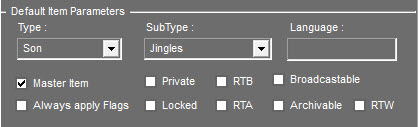
This section defines default values for an item.
The following values are NOT used when updating existing database items :
- Type : Select item type (Sound, …).
- Sub Type : Select item subtype (if Sub Type is a dynamic tab, the associated Write Query applies).
- Language : select the language associated with the items ("FRENCH", "SPANISH", "ENGLISH", "DUTCH", etc.). This is usually used by radios broadcasting in several languages.
- Master Item : If this box is not ticked, item will be inserted as "Raw" (VIRTUAL=0) items, Master (VIRTUAL=7) otherwise.
The following values are used when creating new item and, if Always apply Flags is checked, also when updating existing items :
- Private
- RTB
- Broadcastable
- Locked
- RTA
- Archivable
- RTW
1.4.5.Special Metadata
About Metadata :
Autofill collects metadata from the following sources, ordered by ascending priority:
Default Metadata (i.e : name, file date)
Existing item's metadata in database (T_ITEM)
Low priority filename parsing
XML Metadata
File Metadata (tags, Wave/BWF chunks)
High priority filename parsing
Custom plugin generated metadata
For instance, if a title is retrieved from mp3 ID3v2 and XML includes tag STRING_2, the earlier will be retained. Note also that some existing database metadata can't be changed and/or may be automatically managed (STATE of items for instance).
Metadata mapping :
Title metadata (BWF Description, ID3v2 title, WAV Name ) is mapped to T_ITEM.STRING_2.
Author metadata (BWF Originator, ID3v2 performer, WAV Artist, …) is mapped to T_ITEM.STRING_1.
Ad Campaign is mapped to STRING_3.
Music Style/SubStyle is mapped to STRING_3/4.
BWF Originator Reference is used as ID_ITEM search criteria, and mapped to STRING_3, only if STRING_3 is empty.
Track number is mapped to STRING_5.
Year is mapped to STRING_6.
Tempo is mapped to STRING_8.
Album (ID3 'TALB' tag) is mapped to STRING_10.
Cd Id is mapped to NUM_CD.
Reconciliation Data is mapped to NUM_SELECTOR.
Remarks/Comments fields are mapped to ITEM_REMARKS.
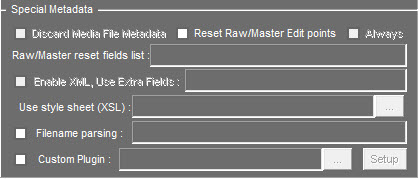
Discard Media File Metadata : Ignores media file metadata (BWF info, MP3 tags, etc...)
Reset Raw/Master Edit points : Reset edit points on Raw/Master items.
Raw/Master reset fields list : When adding/updating at the same time, a Raw/Master and a Production item, you can specify a list of T_ITEM fields (comma separated) to reset on the Raw/Master item.
Always : When checked, the reset field feature will always appli, even when adding/updating a single Raw/Master item.
XML Processing :
XML processing allows to have rich metadata together with a media file. The source of XML can be:
An XML file,
And embedded XML chunk in media file : aXML and iXML chunks are supported.
XML processing is based on an XML T_ITEM tuple dump, but it is extensible in 2 ways:
Support for XSL translation to accommodate any XML format.
Support for extra fields (non-standard T_ITEM fields).
Enable XML : This parameter enable XML processing (import, translation, metadata extraction).
Use Extra Fields : If XML is enabled, you can specify here non-standard T_ITEM fields to retrieve. Each entry is defined as FIELD_NAME:type where FIELD_NAME is the XML tag name mapped to T_ITEM column, and type is int, string or datetime.
Ex : ITEM_DURATION8:int; ITEM_REMARKS12:string, DATE9:datetime
For datetime, the syntax is a SQL timestamp formatted string, ex: { ts '2016-07-02 18:00:00' }
Use style sheet (XSL) : If XML is enabled, specify an XSL style sheet file to apply to the XML file before parsing. Leave this field empty if XML file is already in native NETIA format (T_ITEM tuple dump).
XML offers also special features and enhancements:
Call of an http url via the
GUID=
(tags used: GUID_ITEM, MAILTO, SITE_TRANSFERT)
PATH does not need to be specified if media source file is in the same place as XML file.
If FILE tag is empty, Autofill will look for an audio file with the same name as XML with the following extensions: son, wav, mp3, bwf, mp2
Support for XML commands: instead of Adding/Updating an item to the database, Autofill can perform special actions, based on the contents of the tag
Available commands are : DELETE (will mark item as deleted), and ADD (or UPDATE) .
When processing a Production XML item (VIRTUAL=5), the master item is automatically created if needed.
Troubleshoot facility : If a problem occurs while processing an XML translated with an XSL, you can activate "Generate Diagnostics" : The translated XML will be moved to the Trash bin (where you'll be able recover and investigate it). Such files are named XML*.tmp.
Support for Marker metadata : via
Support for extended item association: via
Examples:
Support for Production "relay" metadata : via
Example:
Where fields are respectively: ID_RELAY,POSBEGIN,POSEND,POSMODE
Note : no check is made against T_DEFRELAIS for consistency.
Filename parsing : Extraction of metadata based on the filename, e.g.: a sound file called “24-01-2003_jingle1.mp3” can be broken down into a date and a name. The association between the fields in the database is made with the following codes:
? : Wildcard skip caracter
*S00 : Skip string
DATE_BEG_TIME :
*AAAA : 4 digits year
*YY : 2 digits year (16=2016)
*MM : Month (01-12)
*JJ : Day (01-31)
*HH : Hour (01-23)
*NN : Minutes (00-59)
*SS : Seconds (00-59)
*GUID : Guid Item
*CD : NUM_CD
*SEL : NUM_SELECTOR
*ARCH : NAME_ARCHIVE
*LN : ITEM_LANGUAGE
*S01 - *Snn : STRING_1 - STRING_nn (up to STRING_99)
Note : If uppercase flags (ex : *AAAA) => priority over existing metadata EXCEPT plugin generated metadata, which has higher priority.
Custom Plugin : Autofill Text Import Plugin.
For customer specific functionalities, Autofill has the ability to manage plugins.
Plugin are dll files with 'apf' extension. Check the box and select plugin. To change the plugin Click on  to select the .apf file.
Netia has developed a generic plugin for extracting metadata from text files containing typically comma separated data (csv).
Then click on  to access plugin own setup.
The setup window for the Autofill Text Import Plugin present as follows :
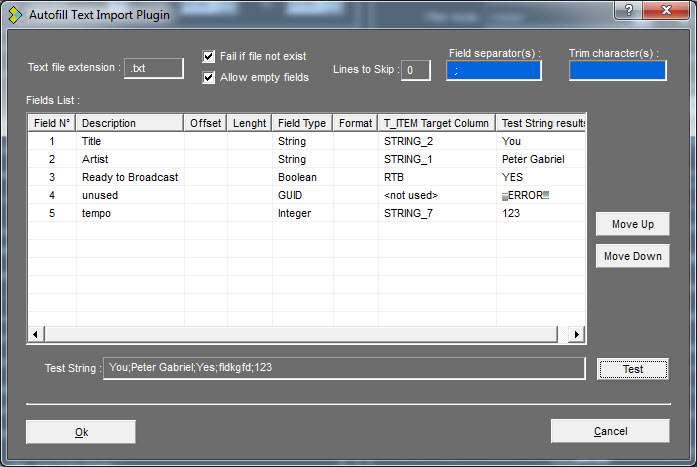
Text file extension: The plugin will look for a file with the same name as the media/xml file, with an extension as defined in this field. Prepending dot must be included.
Fail if file not exist, Allow empty fields: define behavior in case file is not found and/or a field is empty.
Lines to skip : useful for text files containing header line(s).
Field separators : typically characters like comma, semicolon, et…
Trim characters : typically characters like space, tabulations, which must be right trimmed.
Fields List : Use right click to Add/Edit/Delete field line. Use Move Up/Down buttons to move up/down field item.
You may also double click on a field line to edit it. Use tab to jump to next column when editing a field line.
Field N° : integer (1…n) number of the field to use.
Description : used to describe the field for user convenience.
Offset : number of characters to skip in the field (e.g. to skip a prefix). Leave 0 or empty if not used.
Length : max number of characters. Leave empty to get entire field.
Field type : indicated the type of the field (integer, Boolean string, etc…).
Format : When there's no consistency between field value and what's needed, you can define a list of 'substitutions', each one comma separated.
A substitution has the following syntax: 'field value' > 'result value'.
Default substitution in case previous ones do not match : ? > 'result value'.
Example: 'AA'>'1';'BB'>'2';?>'3' Will replace AA by 1, BB by 2, or 3 if anything else.
T_ITEM target column : Select/Type the adequate T_ITEM column.
Test String result : when checking a test string, result are displayed here.
Test String : You can verify if all required fields are properly parsed by writing/pasting a test string here and clicking on Test button. The extracted fields will be updated in the list column 'Test String results'.
Click Ok to save setting and exit plugin setup.
NOTE : It is possible to import a picture with a sound under certain conditions:
It only works with audio file(s) with an image included in the file.
It does not work with XML Import mode even if the file(s) have an image.
It does not work with an image beside/in the same folder as the sound file.
1.4.6.Files & Directories
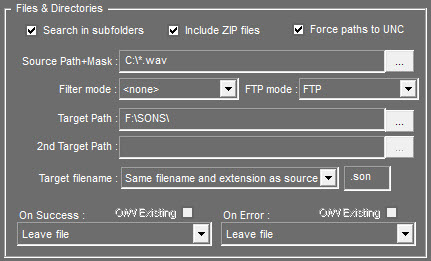
Here you specify in which source directory the files to process are located and the target directory where they will be stored after processing. The source directory must be DIFFERENT from the target directory.
Search in subfolders : Will search in all subfolders of the given path.
Include ZIP files : Automatically decompress ZIP files in source directory before processing files. Zip files are then deleted after use.
Force paths to UNC : Force network paths to UNC format. If T_SECUR table is used for locating secondary path, you MUST enable this option.
Source Path-Mask : This is the source directory or ftp server where files will be retrieved.
Notes :
- Use correct willcards (such as C:\Sounds\*.wav) "*.*" is not recommended.
- Up to 10 willcards allowed, vertical bar (or pipe "|") separated (ex : C:\Sounds\*.wav|*.bwf|*.mp3)
- FTP syntax is : ftp://[user:[password]@]
e.g : ftp://ftp.server.net/audio/music/*.wav
ftp://anonymous@ftp.server.net/*.mpg3
ftp://anonymous:pass@ftp.server.net:21/*.mp3
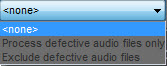
Filter mode : Apply a rule for defective/corrupted files.
FTP Mode : Select the FTP protocol (FTP, SFTP, FTPS).
Target Path : This is the main or primary target directory or ftp server where files will be stored.
- Dynamic path variables (always uppercase) supported (except $USER).
Ex : \\server\$YEAR\$MONTH\audio\
- FTP syntax is : ftp://[user:[password]@]
e.g : ftp://ftp.server.net/audio/music/
ftp://anonymous@ftp.server.net/
ftp://anonymous:pass@ftp.server.net:21/
Notes:
FTP protocol implementation is not identical among FTP Servers software. This is especially problematic when writing directly files and 'seek' is needed but the server does not support RETR command. Choosing a raw/header less file format, when possible, may circumvent the issue.
It is not recommended to use the "Include Zip files" feature, as issues has been reported with some FTP servers.
2nd Target Path : Optional secondary target directory or FTP server. This field is disabled when T_SECUR is used (Force PATH to UNC checked) because secondary target is resolved automatically.
Target filename : Selects how the target filename and its extension are created.
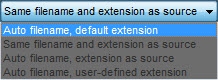
Only "Auto filename, user defined extension" will allow you to modify the extension. 
Note : With GUID enabled databases, the filename part is always assigned the GUID.
On Sucess/On Error : Based on the result of item process, you can define in each case what to do with source files.
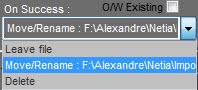
For "Move/Rename" option:
You can specify a path (or a relative path), file/extension mask for renaming file.
Leave file/extension empty to reuse current file/extension.
Use the star as a wildcard to include current file/extension.
Tick "O/W Existing" to overwrite existing target file.
Examples:
empty string, or *, or *.* è don't change
x:\\Done\\ è will move file to specified drive/folder.
.\\Done\\ è will move files to source path subdirectory 'Done'.
.Ok or *.Ok è will rename files to :
_done_ or _done_ è will rename files to : _done_
\\server1\not_good\*.*_No_Ok è will move and rename files
1.4.7.Target Audio Format
This section is specific to audio files. Here you specify the audio and file format of the processed files.
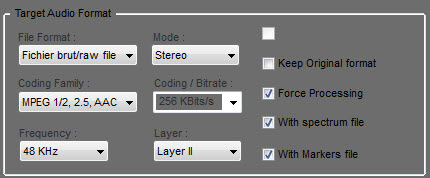
Except for specific purposes, we strongly recommend you to use the same audio parameters as in your usual Radio Assist configuration.
File Format :
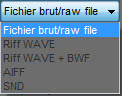
Select in the list from the most usual file formats used by RadioAssist. NB: a file format does not necessarily govern the type of audio format in the file. However, in some cases, standards can impose or restrict the type of audio format a file can contain.
M
ode :

Specify the target mode: Mono or Stereo. MPEG has 2 other modes: Joint-Stereo and Dual Channel.
Coding Family :
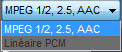
Choose between Linear/PCM and MPEG.
Coding Bitrate :
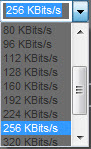
Choose the linear encoding for PCM (8/16/24 bits) or the bitrate for MPEG.
Frequency :
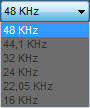
Choose the sampling rate of the processed files.
MPEG supports 48, 44.1, 32, 24, 22.050 and 16 KHz.
PCM supports MPEG Frequencies plus : 192, 96, 88.2, 64, 11.025 and 8 KHz.
Layer :
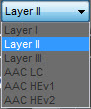
This option is only valid for the MPEG coding family. Choose Layer I, II, III or an AAC profile.
By default, when importing MP3 the following file properties are supported / imported:
Title (String_2)
Author 5 (String_1)
Remark (Item_Remark)
Jacket (Associated image)
Skip Process if already done : This option is enabled only if "No history file management" is checked. It allows to skip media file update if it is unchanged.
This option does not work if target path is an FTP server or if target path is not NTFS formatted. Keep Original format : Check this box to keep target file format the same as the original. It will disable the 6 previous choices above. Force processing : Normally, when Autofill detects that no processing is needed (source sound file is clean, matches target audio format, and no level processing is required) the file is copied to the target folder(s).Tick this checkbox to force processing of the sound file. With spectrum file : Create spectrum file with the audio file. For linear/pcm files, spectrum resolution should be checked. Refer to Annex 1 for details. With Markers file : Create default marker file (.MRK) with the audio file. If Marker metadata is present (e.g. in XML) , it will take over default marker points.
1.4.8.Audio Processing
This section is used to adjust internal sound levels when processing audio files.
Here again, except for specific situations, these parameters should match your audio level configuration in RadioAssist.
It is crucial to have a sound database with homogeneous sound files levels.
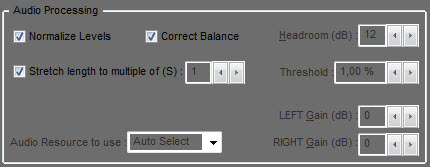
Normalize levels : Adjust the sound level of the entire file to reach a maximum peak of 0 dBFS, minus the Headroom value.
0 dBFS means 0 dB relative to Full Scale, i.e. maximum sample value.
The normalization procedure does not alter dynamics or timbre of the sound.
e.g : A sound file having a max peak level of –9dBFS will be attenuated by -3dB, if headroom is set to 12dB.
Correct Balance : Relevant only for stereo/dual channel files. Use this option to normalize independently left and right channels, thus correcting level mismatch between left and right channels. If it is not checked, Autofill will use the greater peak found and will apply the same gain to both channel.
Headroom : The Headroom in digital audio, whilst being similar to the headroom found in analog equipment, have some specificities.
Both are intended to indicate a 'reserve' or safety margin, between a nominal/alignment level and the maximum level before audio quality gets impaired.
It is an absolute value in dB.
In digital audio, because audio samples are numbers, even a slight level increase may cause overflow, and the consequence is hard clipping and unacceptable audio deterioration. In comparison, in analog audio the deterioration is gradual.
Headroom is then a compromise between safety and 'usable' audio level range, that is, dynamic range. And signal to noise ratio by consequence.
With a too small headroom, say 3dB, the resulting processed files will hence have a max peak level of -3dBFS. The trivial operation of mixing 2 of these files will very likely produce hard clipping/distortion.
A higher headroom will result in a higher noise floor.
An Headroom set a 12 dB is a good compromise, especially when working with 16 bits resolution audio files (this includes 16 bits encoded compressed audio like MPEG L1/2/3, AAC, ….).
LEFT and RIGHT gain :
These parameters will apply a fixed gain when generating target sound file.
Values range from from –200 to +20dB.
Gain adjustment is made at the end of processing chain, that is, after normalization, if any.
Fixed gain adjustment is useful when a large amount of sound files have known, homogeneous volume levels, with similar peak levels. So computation of peak level (used when normalizing) is unnecessary, thus saving processing time.
Stretch length to multiple of (S) :
Autofill has the ability to automatically adjust the duration/length of a sound without altering its pitch/timbre. This effect is called Time-Stretching.
This feature is useful for rounding the duration of files, especially for Ads, filling elements, etc...
The duration will be rounded to the nearest multiple of the seconds defined.
To limit the side effects of a high time-stretching ratio (never exceed 3 %), it is advised to keep this parameter as little as possible in comparison with sound file duration.
e.g : Given a sound file duration of 28400mS, with a Stretch Length Multiple of 2 seconds : the nearest multiple of 2 seconds is rounding down to 28000mS, that is a time-stretch ratio ≈ 1,42 %.
Threshold:
This parameter is the threshold for the auto time stretch feature.
If ratio of the original/rounded duration is lower than the threshold, no stretching is done.
Audio Resource to use : This parameter is now only used to choose the sound card for playing files, if needed. Set to 'None' otherwise.
1.5.Operating
Autofill has 2 operating mode : Manual and Automatic.
Once a settings profile is done, select the profile you want to use
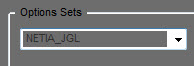
and click on 
The file list is then filled in with the sound files (if any) corresponding to the options selected in the "Source Path & Mask" field.
The 
 and buttons will be accessible in the main window.
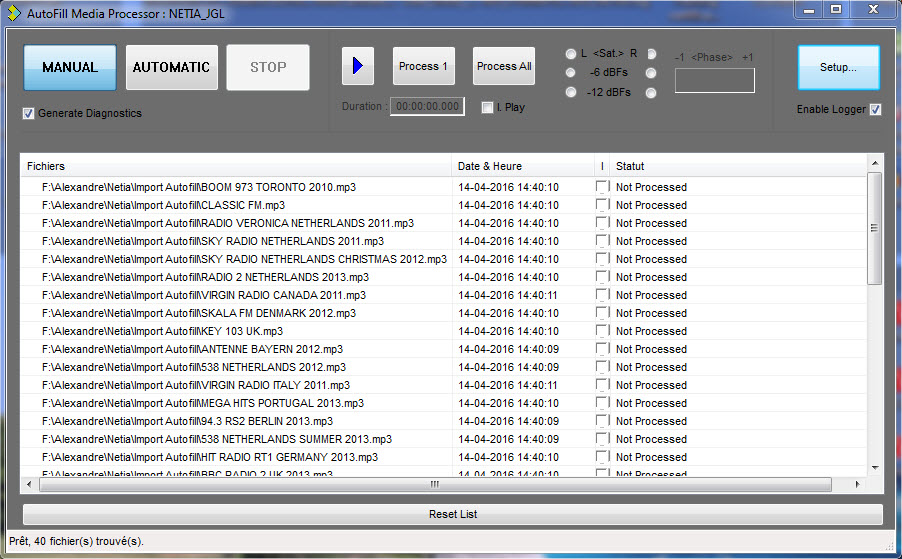
Generate Diagnostics : Used by administrators to generate information when an operating problem arises or simply to view technical details when processing items.
Use DBWin32 or DebugView tools to monitor information. Leave it unchecked unless otherwise instructed.
Enable Logger : Process informations will be sent to Service Logger.
I.Play : Intro Play : By ticking this checkbox, and clicking on  , Autofill will play the first 10 secondes of each files from the list.
1.5.1.Manual Mode
Manual is the default mode.
Click on an item in the list to display file information.
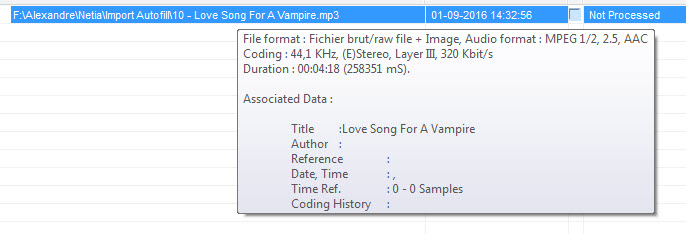
Clear the list by clicking on "Reset List" button.
Process 1 file, via the  button. it will process highlighted/selected file.
Process All, via the  button. It will process all files from the list.
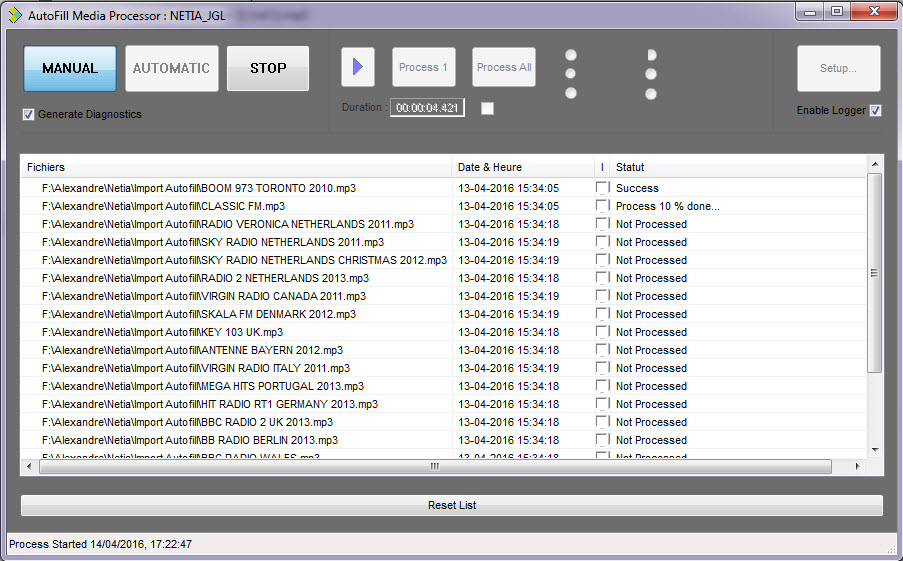
Use the  button to stop processing :
Autofill carries out this operation in a loop until an operator clicks on this button.
This stops everything (both the manual and automatic modes).
This window is shown :
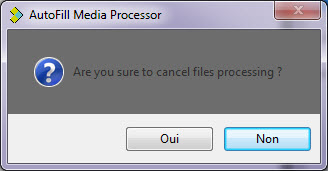
Click on 
 (Yes) or (No)
The file processing when stoping the import will be canceled.

Play a file. Plays highlighted/selected file (An audio resource must be selected, refer to Setup, "Audio Resource to use" parameter).
To play a file, select it from the list and press 
 . Press to stop playing.
While playing the sound, you will be shown basic information on the length of the file, levels, and, if the file is linear, a phase correlator.
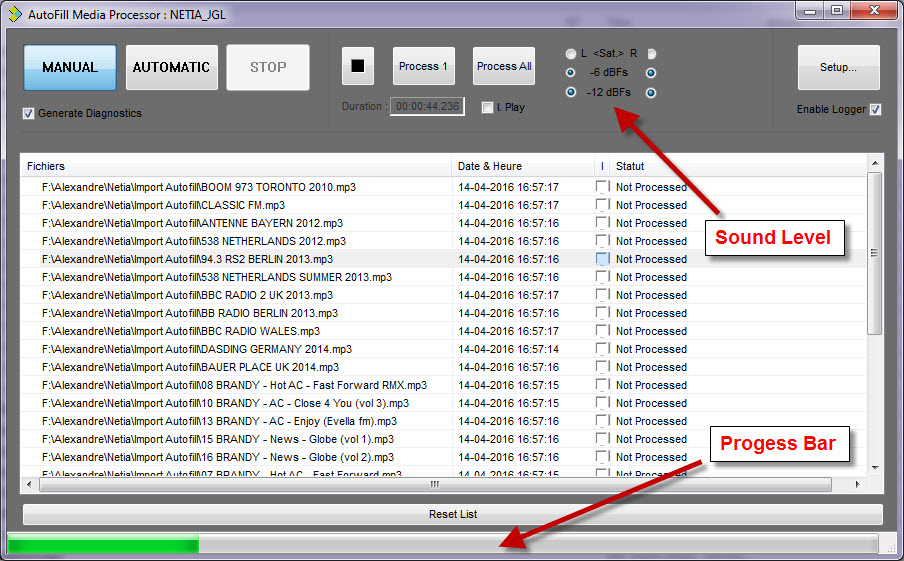
During the procedure, the file being processed is highlighted (left-hand icon). A progress percentage and the file status are displayed on the right.
NB: Before processing a file, Autofill checks that it is not being updated or saved. If it is, Autofill ignores it and goes on to the next one.
As explained above, in automatic mode, once all the files are processed (or ignored), Autofill goes into standby. When this period is over, it runs a new search in the source directory to find any new files to add to the list, along with any files it ignored before.
Then AutoFill runs its same loop check to see if the previously-ignored files are now ready for processing.
Please note that files with a duration equal to zero are also ignored.
1.5.2.Automatic Mode
To activate the automatic mode, press the  button. Autofill then works in standalone mode.
Autofill then works in standalone mode. It loops the following tasks :
Looks for files in the source directory and, if not already processed, add to the list
For each file in the list :
If file is being updated or empty, skip it : jump to next file in list.
Process file. If successful, add to history file.
If list is empty, waits a predefined time or until new files are detected in source directory.
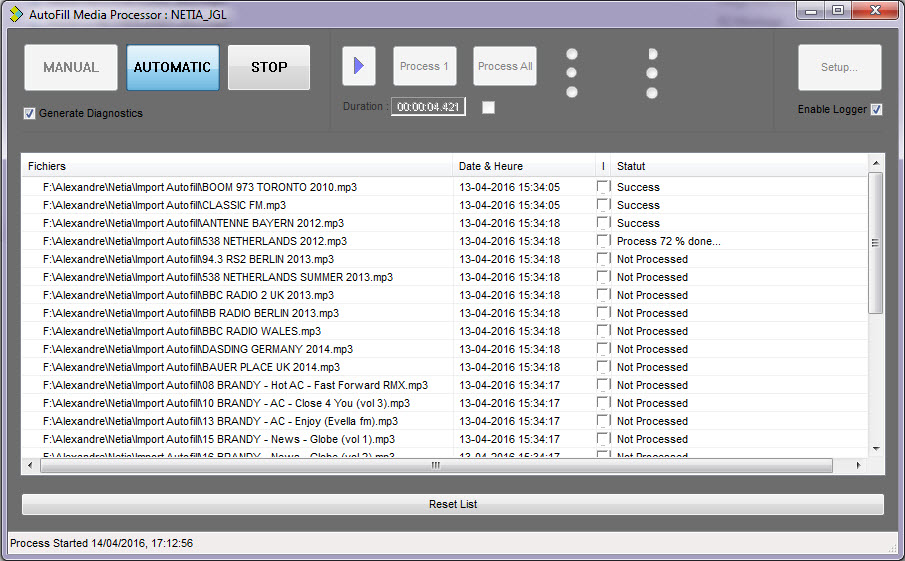
During the procedure, the file being processed is highlighted (left-hand icon). A progress percentage and the file status are displayed on the right.
Autofill carries out this operation in a loop until an operator clicks on the  button.
This stops everything (both the manual and automatic modes).
This window is shown :
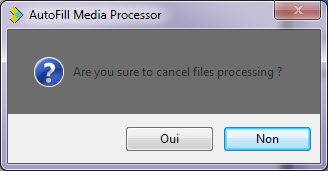
Click on 
 (Yes) or (No)
The file processing when stoping the import will be canceled.

NB: Before processing a file, Autofill checks that it is not being updated or saved. If it is, Autofill ignores it and goes on to the next one.
As explained above, in automatic mode, once all the files are processed (or ignored), Autofill goes into standby (duration can be modified. See Annex 1 : Key "Skip Delay mn). When this period is over, it runs a new search in the source directory to find any new files to add to the list, along with any files it ignored before.
Then AutoFill runs its same loop check to see if the previously-ignored files are now ready for processing.
Please note that files with a duration equal to zero are also ignored.
Refer to Annex 2 for the list of error numbers.
1.6.Annex 1 : Registry Misc Parameters
Autofill configuration is stored in the local computer registry database.
Almost all parameters are stored in:
· "HKEY_LOCAL_MACHINE\Software\Netia\Na-Conv" for 32 bits systems.
· "HKEY_LOCAL_MACHINE\Software\Wow6432Node\Netia\Na-Conv" for 64 bits systems.
Some misc. parameters are taken from RadioAssist registry:
Hotbox : Send parameters are taken from :
HKLM\SOFTWARE\[Wow6432Node\]Netia\Radio-Assist\8.0\Tools\HotBox
Autofill Main registry hive: HKLM\Software\[Wow6432Node\]Netia\Na-Conv
Value name | Type | default value | Comments |
--Licence | string | none | Autofill license string, provided by Netia |
_Enable HT | bool | Yes | Yes: Autofill uses all processors/cores No : Autofill will run on the 1st processor/core |
Def Codage | int | -1 | Default PCM/Linear coding when playing raw files |
Def FsKHz | int | -1 | Default sampling frequency when playing raw files |
Dir Sorting | char | W | Sort files when reading directories : Empty : no sorting is done. C/c : sort by creation date-time. W/w : sort by last write date-time. S/s : sort by file Size. N/n : sort by Name. E/e : sort by Extension. Uppercase : ascending order. Lowercase : descending order. |
File Skip Attribute Mask | int | 0 | When reading directories, ignores files with specific attributes : 1 : ignore read-only files 2 : ignore hidden files 4 : ignore system files 32 : ignore archive files Add values to ignore several attributes. For instance, to discard read-only and system files, set to 5. |
File Skip on FTP | bool | No | When source files are in an FTP server, skips a file if its last write date, compared to current time, is smaller than a given 'Skip delay', profile specific. |
Tab number for old items | int | -1 | Customer specific; in some cases, processing an item changes its kind (TYPE1_ITEM, Dynamic tab). |
Use Local Time | bool | Yes | Yes: Use files local time. No : Use files system time (UTC). |
8.0 | subkey | n/a | For internal use only. No relevant parameters. |
Option Sets | subkey | n/a | Sub key containing the sub keys for each Option Set. |
Option Sets registry hive: HKLM\Software\[Wow6432Node\]Netia\Na-Conv\Option Sets
Value name | Type | default value | Comments |
Setup Access PW | string | none | Password for accessing Setup. Leave empty if you do not wish to use this feature. |
For each Option Set:
HKLM\Software\[Wow6432Node\]Netia\Na-Conv\Option Sets\OptionSet_name
Value name | Type | default value | Comments |
DB : AutoKillDate EndBroadcast Days Offset | int | -1 | This parameter allows to define automatically the Kill Date for an item (T_ITEM.DATE_KILL) a number of day after the End Broadcast date (T_ITEM.END_BROADCAST). Set to -1 if this feature is useless. |
DB : DefaultUser | string | none | Default user name for items in the database |
DB : Ignore Media File Time | bool | No | Yes : Use file times as default values for DATE_BEG_ITEM and DATE_END_ITEM. No : Do not use file times. |
DB : Send2IP Params (Dest Addr,Local Addr,Port,TTL | string | 234.11.11.11, , 5670, 254 | Send parameters for the IP Tuple Notify on Insert function. |
DB : Update Skip Custom Clause | string | none | Custom query in SQL syntax for the Update Skip Flags function. e.g : STRING_2='My Title' and RTB=1 |
File : Allow XML without Media File | bool | Yes | When importing and XML + Media (File tag not empty and State <> State_no_sound) : Yes : Will process XML metadatas without giving media file. No : Will fail if media file not present. |
File: Associated Extensions | string | JPG | List file extensions, without dot and semicolon separated. When processing an item, Autofill will look if associated files exist, and will import them too. e.g : JPG;PNG;BMP;TIF*;GIF The 1st extension will be used to fill T_LIST_FILE.FILE_TYPE. |
File: Associated File Source Path | string | none | Directory where associated file will be looked for. If empty, Item's Source Path will be used. |
File: Associated File Target Path | string | none | Directory where associated file will be imported. If empty, Item's Target Path will be used. |
File: Embedded Image Import | bool | Yes | If Yes, Media files embedded image will be imported as an associated item. |
File: Embedded Image Target Path | string | none | Directory where embedded media images will be imported. If empty, Item's Target Path will be used. |
File: No Alter Media file | bool | No | In some cases, Post Process options must apply only to XML and not to its media file. Yes : Leave Source Media intact. No : Post Process option apply to source media as well. |
File: Skip Delay mn | int | 10 | Number of minutes to wait between Source Path scan cycles. Wait can be interrupted if changed are detected (except in FTP). |
Ftp: Fast Mode Media XML | bool | No | Yes : bypasses some operations which may take time on slow FTP servers. No : FTP and non FTP files are processed identically. |
Ftp: Force XmlMediaFile OptSet FTPLogin | bool | No | When XML & Media files are located in an FTP server: Yes : FTP login is taken from The XML Media file URL, if any. No : FTP login is the same as in Source Path. |
Ftp: Keep Connection | bool | Yes | Yes : Keeps FTP connection open when processing an item. No : FTP connection is opened only the time of an FTP I/O. |
Ftp: Server Time Zone | string | None | Times returned by FTP servers are – generally – local based times. This may induce time errors (for Skip Delay check, for instance) is FTP server is located in a different Time Zone. To circumvent this problem you can define the FTP Server Time Zone name. Ex: Romance Standard Time Time zones list is located in local registry : HKLM\SOFTWARE\Microsoft\Windows NT\CurrentVersion\Time Zones |
Gen: Last Pos/Size | string | 0,0,0,0 | Autofill default screen position and size in Automatic Mode. |
TF : _Spc File Resolution | int | 1 | 0 : No spectrum file (settable via UI) 1 : Default spectrum resolution (settable via UI). In MPEG, spectrum resolution equals frame sample count. In linear/pcm same as MPEG L2 sample count for the same sampling frequency. Other values: For PCM/Linear only (NOT settable via IU). |
1.7.Annex 2 : Error List
Error codes are characterized by a value < 0.
In some cases, an error is due to multiple causes. You might activate the DIagnostic mode to activate the Cartes32u monitor. It gives a detailled diagnostic for errors due to audio treatment.
In the same way (e.g., errors generated by an Autofill plugin), it is recommended, to diagnose an error or an unexpected behavior, to start a DbWin32, DebugView or any debugging terminal. Numerous informations are generated and allows to follow the treatment of every item and locate problems.
[-1] : The file to treat is defective, was deleted or cannot be accessed. If it's an XML file, verify that "Enable Database" and "Enable XML" are ticked.
If the XML source is on an FTP, this error may indicate an FTP transfer problem to the the local disk.
If the audio file contains a chunk "aXML/iXML" and the chunk extraction fails, this error also applies.
[-2] : The audio file to process has a duration to 0, or doesn't comply with the filter criterion (process only defective files or process only non defective files). In case of an XML process, the item has a forbidden type (e.g. cartstack)
[-3] : The XML source file couldn't be processed (format issue, incorrect XML), or couldn't be translated with the style sheet (style sheet issue). The translated XML doesn't respond to the Netia native XML format, i.e. "tuple T_ITEM".
[-4] : An item with the same GUID_ITEM already exists in the DB. For the items not updated, and only items which are not "Archived+Deleted".
[-5] : The marker/field ITEM_STATE has an incorect value.
[-6] : XML : The marker/field PATH has an incorect value.
[-7] : XML : The marker/field FILE has an incorect value.
[-8] : XML : Media file not found and required. Download error of the media file from the FTP server.
[-9] : The source file is skipped beacause trop new (it may be written at the same time)
[-12] : In update mode, more than 1 update criterion is filled and the option "Update Skip Flags/More than 1 key match" is ticked.
[-13] : One of the skipping criterion in "Skip item on matching" is filled.
[-14] : XML with DELETE command : Impossible action because this item is used in, at least, 1 cartstack.
[-15] : XML with DELETE command : Impossible action because item to delete nit found.
[-16] : XML with UPDATE command : Impossible action because item to update not found.
[-18] : Production type XML : Impossible action because no Raw/Master and/or no sound file found or already existing.
[-20] : Error generating an unique ID_ITEM (Stored procedures error or DB disconnection).
[-21] : Error generating an unique ID_ITEM for a Production item (Stored procedures error or DB disconnection).
[-30] : Update Mode, error when loading existing item from DB.
[-31] : Update Mode, skip on LOCKED item.
[-32] : Update Mode, skip on PRIVATE/PERSONAL item.
[-33] : Update Mode, skip on RTB item.
[-34] : Update Mode, skip on RTA item.
[-36] : Update Mode, skip on item with STATE=3 or 5 (deleted or archived + deleted).
[-37] : Update Mode, skip on custom criterion (personalized query).
[-41] : Update Mode on Production item , skip on LOCKED item.
[-42] : Update Mode on Production item, skip on PRIVATE/PERSONAL item.
[-43] : Update Mode on Production item, skip on RTB item.
[-44] : Update Mode on Production item, skip on RTA item.
[-46] : Update Mode on Production item, skip on item with STATE=3 or 5 (deleted or archived + deleted).
[-47] : Update Mode on Production item, skip on custom criterion (personalized query).
[-50] : Error on media file loading (LoadMorceau).
[-55] : Plugin error durring during "file scan" phase.
[-56] : Plugin error durring during "By default metadata".
[-57] : Plugin error ("bypass" type) durring "By default metadata".
[-60] : Son file process : Sound level analysis error (for normalization).
[-65] : Son file process : Masterization/Conversion error.
[-70] : Plugin error during the "Pre insert of raw/master item" phase.
[-71] : Insert/Update error of raw/master item in the DB.
[-72] : Plugin error during the "Post insert of raw/master item" phase.
[-75] : Plugin error during the "Pre insert of raw/master item" phase.
[-76] : Insert/Update error of raw/master item in the DB.
[-77] : Plugin error during the "Post insert of raw/master item" phase.
[-100]: Plugin error during the "Post treatment" phase.
[-200…-210]: Post http page call treatment errors.